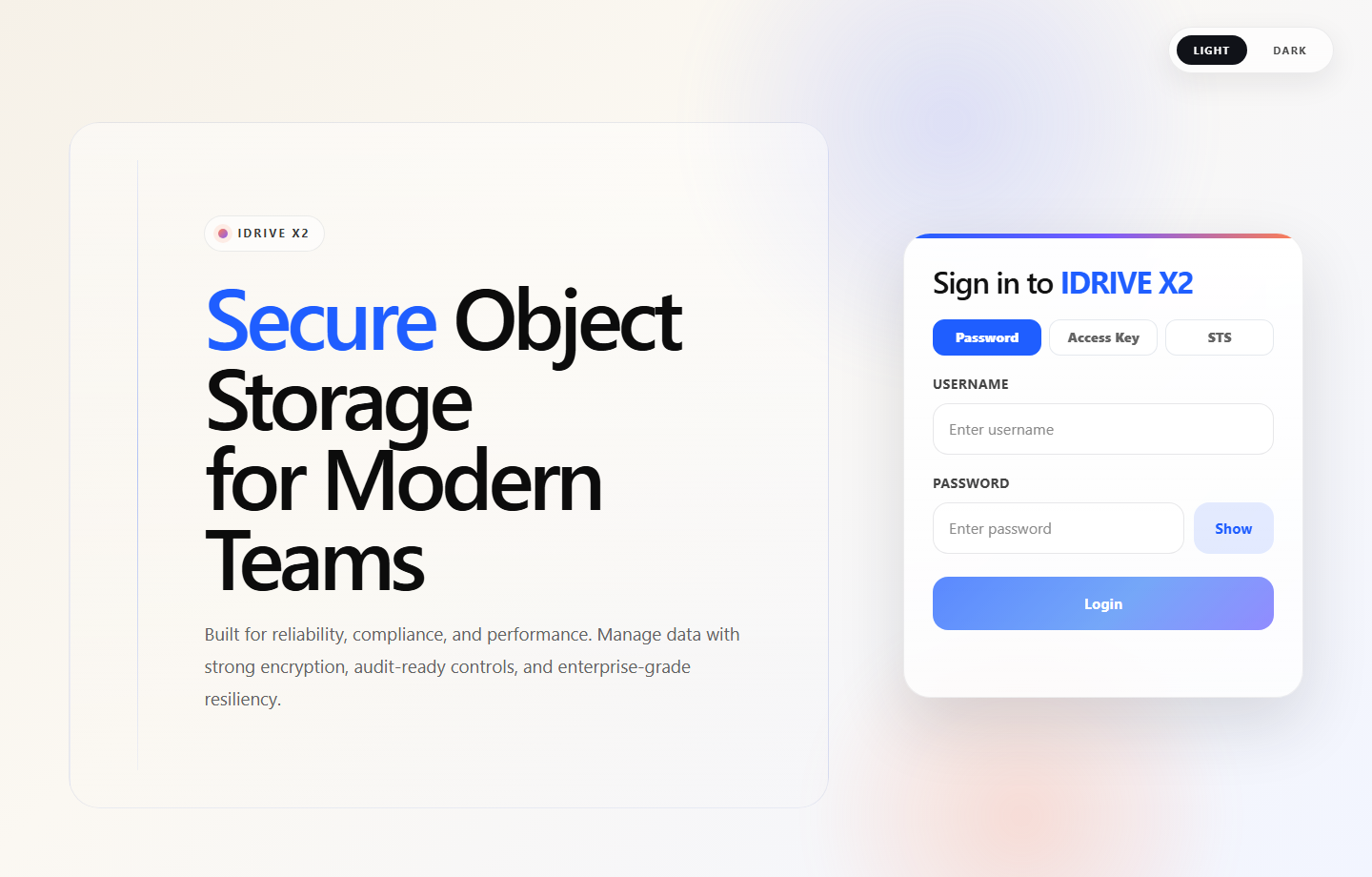
The Console is served by every X2 Node. Use it to create storage accounts and credentials, work with buckets and objects, manage security, and operate the cluster.
Before you begin
Open the public HTTPS address of any healthy X2 Node. The embedded Console and API share the same origin, so no separate UI server is required.
01
Sign in with the right identity
Use the bootstrap administrator configured on the first node for system administration. Storage account users sign in with their own account identity and password; an S3 access key is for clients and SDKs, not Console login.
X2 Console sign-in. Use the administrator or account-user credentials created for this cluster.
02
Configure storage accounts
The system account can own and manage its own buckets. Create additional accounts when storage needs a separate identity, quota, or administration boundary.
Use the normal system-administrator session for account 1 storage and cluster operations.
Open Identity → Accounts and choose Create account for independently administered storage.
Choose View read-only on one account to inspect only that account's IAM resources and bucket metadata, then use Exit to return to system administration.
Identity boundary
The protected X2AccountObserver session is bound to the selected account. It cannot read object content, create credentials, assume roles, or change identity and storage resources.
03
Create a bucket and upload an object
Open Storage → Buckets and choose Create bucket.
Select the bucket type and optional features such as versioning or default encryption.
Open the bucket, choose Upload, and select a file.
Confirm that the object, size, and modification time appear in the listing.
Bucket settings—including versioning, tags, policy, lifecycle, events, inventory, and encryption—remain available from the selected bucket.
04
Create application credentials
Open the account’s access-key page and create a key for the application identity. Copy the secret once and store it in a secret manager; X2 does not display it again.
Use for applications
Access key ID, secret access key, endpoint, region, and trusted CA.
Do not use
The Console password in an SDK configuration or access keys on a shared command line.
System administrators can inspect nodes, health, capacity, logs, audit activity, and update availability. Use Nodes → Install new node to create a short-lived join link, and use the dedicated update page for rolling upgrades.
Check quorum and node readiness before maintenance.
Review failed health checks and logs before restarting a host.
Drain writes before planned disk or node work.
Apply updates through the rolling workflow, one node at a time.